

Community
회원정보
I forgot my ID / How to find my ID
manager
2026-07-14
Please click the [Login] > [Find ID] button at the top right of the homepage.
On the page, only part of the ID can be viewed,
Your full ID will be sent to the email address registered upon sign-up .
Please check your email.
※ If you do not receive the email, please check your spam folder .
동영상 플레이어
Error - 'Failed to initialize player. Please refresh the screen.'
manager
2026-07-14
Player installation errors can occur due to various reasons.
Please check the steps below to resolve the problem.
① Check Chrome browser settings
1. Attempt to reset Chrome browser settings
2. If Chrome browser proxy settings are enabled, disable them.
3. Check if the download is normal after rebooting.
② Change DNS server settings
1. Check the DNS server in your current IP configuration
2. If the DNS server is set to private, change it to Google DNS (8.8.8.8)
③ Reinstall the player
1. Delete existing player
2. Download and install the latest version of the player
※ The same error may occur if the player installation file is corrupted or not the latest version.
④ Reboot PC
1. If the PC has been in operation for more than a day, an error may occur due to insufficient PC resources.
2. Please check if it works properly after rebooting.
You can find a more detailed guide at the link below.
🔗 How to resolve 'Player initialization failed. Please refresh the screen.'
동영상 플레이어
Code 1002 Error - Occurs when running Zoom
manager
2026-07-14
Zoom includes not only client programs but also browser extensions, etc.
Errors may occur as it can affect the system in various ways.
In particular, Zoom can be installed as a browser plug-in ,
If you do not shut it down completely, the error may persist.
① Exit the program
1. Run Task Manager (Ctrl + Shift + Esc)
2. Check Zoom.exe or Zoom-related items in running programs.
3. Right-click → Click [End Task]
※ It may also be running in the icon tray, so please check the icon at the bottom right of the taskbar.
② Delete browser extensions
1. Launch Chrome browser
2. Click the [three-dot menu] at the top right → Select [Extensions]
3. Disable or delete 'Zoom' from the list of installed extensions.
You can find a more detailed guide at the link below.
🔗 Code: 1002 How to deal with the recording capture tool (ZOOM)
동영상 플레이어
Code 1002 Error - Occurs due to screen capture programs (such as OBS)
manager
2026-07-14
If a screen capture and recording program such as OBS is running
A Code 1002 error may occur.
① Exit the program
1. Run Task Manager (Ctrl + Shift + Esc)
2. Check OBS, Bandicam, Windows Snipping Tool, etc. in running programs.
3. Right-click the program → Click [End Task]
※ If auto-run is enabled, it may turn on automatically upon booting, so please also check your startup program settings.
You can find a more detailed guide at the link below.
동영상 플레이어
Code 1002 Error - Occurs due to running Discord
manager
2026-07-14
Because of Discord 's screen sharing feature
A Code 1002 error may occur.
① Exit the program
1. Run Task Manager (Ctrl + Shift + Esc)
2. Check Discord in the list of running programs.
3. Right-click Discord.exe → Click [End task]
※ Simply closing the window does not completely terminate the process, so you need to terminate it through Task Manager.
If the same error occurs continuously,
Please change the settings so that the program does not run automatically in the background .
② Background execution prevention settings
1. Launch Discord
2. Click the gear icon [Settings] at the bottom.
3. Go to [App Settings] → [Windows Settings] menu
4. Disable 'Close button - Minimize to tray' option
※ If you turn off this option, Discord will not automatically remain in the background when closed.
동영상 플레이어
Code 1002 Error - When caused by Chrome Remote Desktop
manager
2026-07-14
If the Chrome Remote Desktop extension is running
A Code 1002 error may occur.
① Delete browser extensions
1. Launch Chrome browser
2. Click the [three-dot menu] at the top right → Select [Extensions]
3. Disable or delete 'Chrome Remote Desktop' from the list of installed extensions.
※ In some cases, you may need to restart the browser to resolve the error even after deletion.
If it is not resolved with step 1
This may be caused by the installed Chrome Remote Desktop .
② Delete installed programs
1. Run Control Panel
2. Click the Start button → Search for and run 'Control Panel'
3. Click [Uninstall Program]
4. Select 'Chrome Remote Desktop Host' or 'Chrome Remote Desktop' from the list → Remove
※ We recommend restarting your PC after uninstalling the program.
You can find a more detailed guide at the link below.
🔗 Code : 1002 How to handle the Chrome Remote Desktop Plugin
디스코드
I had a problem while using Discord.
manager
2026-07-14
In addition to portfolio feedback / class-related questions
For other inquiries regarding Discord operation, please leave a message on the Q&A board .
Operating hours
Korea Standard Time, Weekdays 09:00–18:00
※ Closed every Wednesday, weekends, and public holidays
동영상 플레이어
Up to how many devices can be registered?
manager
2026-07-14
You can register up to 3 devices per account.
(A total of up to 3 devices can be registered, regardless of type, such as PC, mobile, or tablet.)
If the number of registered devices exceeds 3,
Please note that new device registration is restricted.
How to change (reset) the device
If you replace the device, or if there is a device among the existing registered devices that is no longer in use
You can reset your registration information by resetting the device.
If you would like a reset, please leave a request on the Q&A board following the form below.
Initialization request form
Author :
phone number :
email :
Title: Device Reset Request
Important Notes
※ Device reset is limited to a maximum of 2 times per year.
※ After resetting the device, the lectures will be automatically registered in order, starting from the device that played the lecture first.
Please make sure to log in on your device first before watching the lecture video.
환불
I requested a refund, but I want to cancel it.
manager
2026-07-14
Please go to [My Page] > [Order History ].
Click [View Details] for the course you wish to refund, then click Cancel Refund to withdraw your refund request.
Withdrawal is not possible once the refund has been completed.
회원정보
Where can I withdraw my membership?
manager
2026-07-14
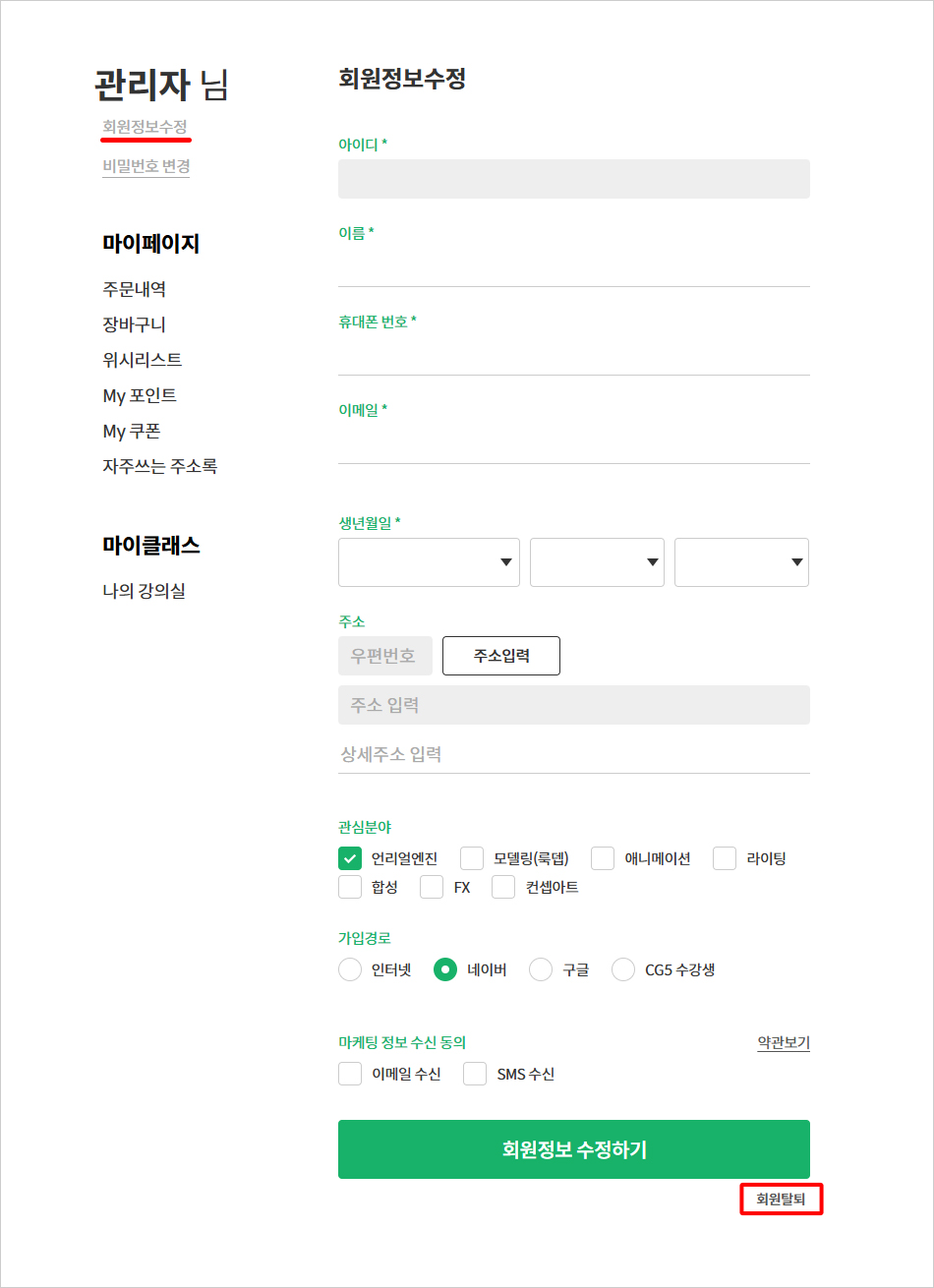
After accessing [My Page] > [Edit Member Information] ,
You can withdraw your membership by clicking [Withdraw Membership] located at the bottom.
강의수강
Where can I watch the lecture?
manager
2026-07-14
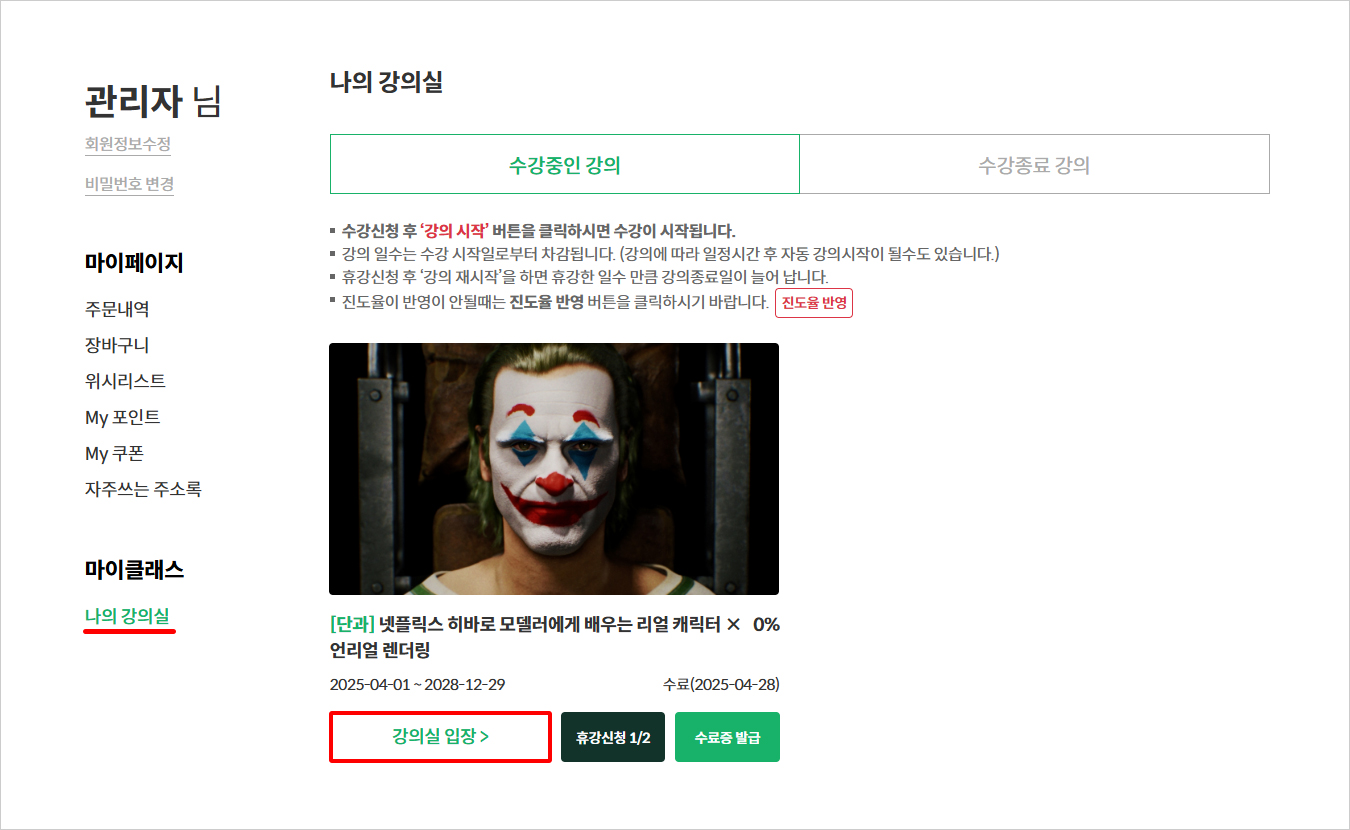
Please go to [My Class] > [My Classroom] .
You can start studying immediately by pressing the [Enter Classroom] button for the lecture you wish to take.
강의수강
Can I keep the lectures permanently?
manager
2026-07-14
Unfortunately, we do not offer a permanent ownership option.
Depending on the option selected when registering, you can freely repeat the course for up to one year .
강의수강
Where can I get the lecture materials?
manager
2026-07-14
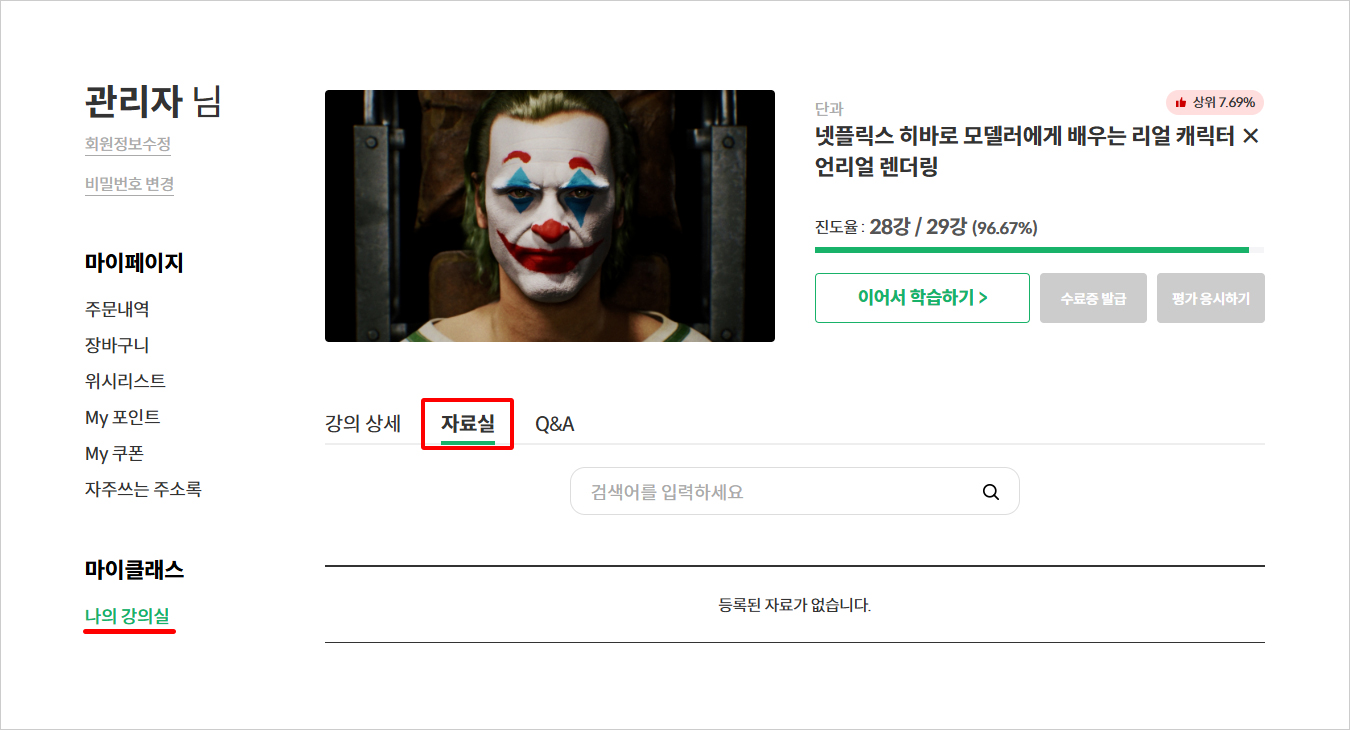
You can download it from [My Class] > [Enter Classroom] > [Resources] .
결제
manager
2026-07-14
Card Payment :
Credit and debit cards, as well as simple payments, are available through Toss Payments.
account transfer:
You can make bank transfer payments via Toss Payments.
결제
Where can I check my payment history?
manager
2026-07-14
You can check your payment and refund history in the [My Page] > [Order History] menu.
결제
Which cards offer interest-free installment payments?
manager
2026-07-14
Interest-free installment payments are available at the following card companies.
| credit card company | Interest-free months |
|---|---|
| Nonghyup (NH Pay) / Woori | 2~6 months |
| Shinhan / Hana Pay / Samsung / Lotte / Hyundai / KB Kookmin (KB pay) / Kakao Bank | 2~5 months |
| Jeonbuk | 2~3 months |
※ Interest-free installment payments are not available for some BC Cards, corporate cards, and debit/gift cards.